Complete Official Lotus365 Forgot Password Guide
Don’t worry if you’ve forgotten your Lotus365 login password. Our official recovery process is simple, secure, and takes less than 5 minutes. This step-by-step guide will help you reset your password and get back to your dashboard safely.
Table of Contents
Step 1: Try Login First (Username + Password)
What to do:
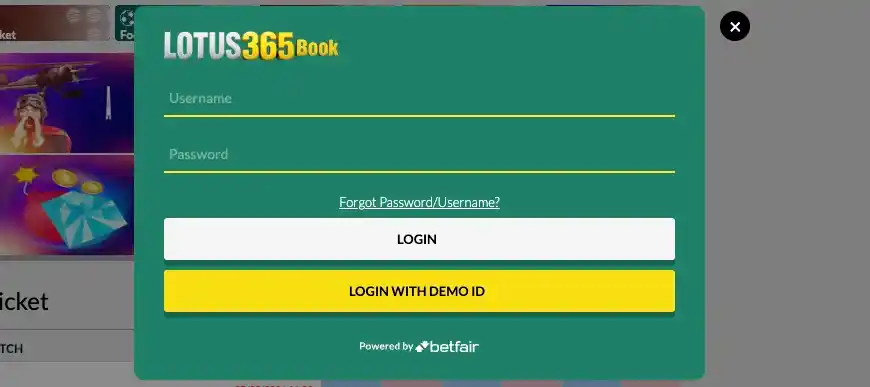
Go to the official Lotus365 login page and enter:
- Username field: Your Lotus365 ID, registered mobile number, or email
- Password field: Your current password (if you remember it)
Click “Login” to test if your credentials work.
If successful: You’re already logged in! Skip to dashboard.
If failed: Continue to Step 2.
Step 2: Check If You’re Registered
Why this matters: You can’t reset a password for a non-existent account.
Quick verification steps:
- Check your phone/email for Lotus365 registration confirmation or welcome messages
- Review your SMS/WhatsApp for any Lotus365 OTPs or account creation notifications
- Contact your agent (if you got ID through agent) to confirm your registration status
Still can’t find proof? You may need to register first before password recovery.
Step 3: Click “Forgot Password/Username?”
Where to find it:
Look below the login form for a link that says:
“Forgot Password?” or “Forgot Username/Password?”
Click this link to open the official recovery form.
Step 4: Official Recovery Form (Country Code + Number)
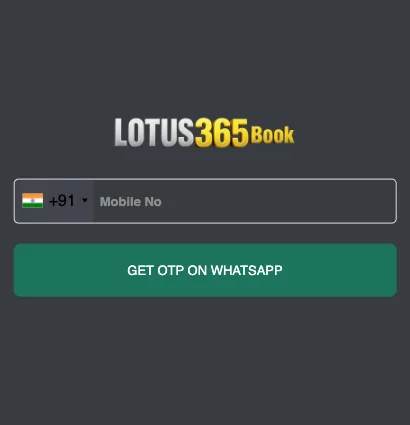
The recovery form opens. You’ll see two fields:
Complete these fields carefully:
- Country Code: Select +91 (India) or your registered country code
- Phone Number: Enter exactly the mobile number used during registration
- Double-check: Wrong number = no OTP received
Step 5: Get OTP on WhatsApp
Click “Get OTP” button.
What happens next:
- System sends 6-digit OTP to your WhatsApp instantly
- Check WhatsApp Messages from official Lotus365 support number
- Also check SMS (backup delivery method)
No OTP received?
- Wait 60 seconds, click “Resend OTP”
- Verify correct country code + number
- Check WhatsApp spam/blocked chats
Step 6: Enter Valid OTP
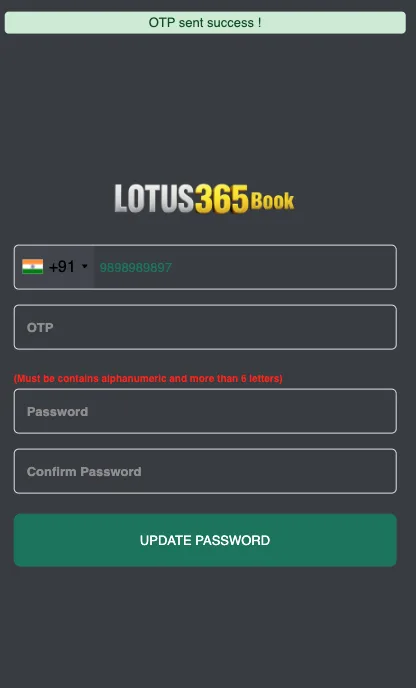
Enter:
- 6-digit OTP from WhatsApp/SMS (exactly as received)
- New Password (minimum 8 characters)
- Confirm Password (must match exactly)
Password Requirements:
Click “Update Password”
Step 7: Login with New Password
Success message appears: “Password updated successfully!”
Now login again:
- Return to main login page
- Enter your Username/ID
- Enter your brand new password
- Click “Login”
Welcome back! You now have full dashboard access.
Troubleshooting Common Issues
| Problem | Solution |
|---|---|
| “Invalid OTP” | Check WhatsApp/SMS. Resend if expired (5 min validity). |
| “Number not registered” | Verify exact registration number with agent or check SMS history. |
| “Passwords don’t match” | Retype both fields carefully. Use copy-paste if needed. |
| No WhatsApp OTP | Check SMS fallback. Enable WhatsApp notifications. |
| Still can’t login | Contact support@lotus365betting.com with your registered number. |
Security Tips After Password Reset
Protect your new password:
- Never share your password with anyone
- Enable 2FA in account settings if available
- Bookmark official lotus365betting.com login page
- Avoid public WiFi for login sessions
- Logout from shared devices
Still Need Help?

When contacting support, have ready:
- Your registered mobile number
- Registration date (if known)
- Last 4 digits of any transaction ID
Always use lotus365betting.com and verified support channels. Beware of fake sites asking for passwords directly.
Recovering My Account & Another Smooth Experience
At one point, I didn’t use lotus365 bet for about 7–10 days. When I came back, I realized I had forgotten my login details—and to make things worse, I didn’t have access to my SIM for OTP.
I tried logging in a few times but couldn’t remember the password. It was frustrating at first, but then I remembered how responsive the support team had been earlier.
Quick Help from Support
I contacted the lotus365 bet support team, and the process was surprisingly smooth:
- I shared my login ID
- The team verified my details
- They sent me a password reset link
- I created a new password in under 30 seconds
- Logged in successfully without any issue
They also suggested saving my password in Google Chrome or a password manager so I wouldn’t face this problem again.
Back to Playing (Responsible Way)
After logging back in:
- I started playing again
- Won around ₹3000
- And this time, I followed responsible gaming
I stopped playing after my win instead of continuing unnecessarily. That decision actually made me feel more satisfied than just chasing more wins.
- lotus365 bet proved its reliability again
- Fast support + easy recovery process = less stress
- Smooth experience even after a long break
It’s rare to see a platform where support actually solves problems quickly and guides users properly.
FAQs – Lotus365 Forgot Password Guide
How can I reset my Lotus365 login password?
To reset your Lotus365 password, go to the login page, click “Forgot Password?”, enter your registered mobile number with country code, verify the OTP sent via WhatsApp/SMS, and create a new password. The process usually takes less than 5 minutes.
Can I recover my Lotus365 account without my SIM card?
Yes, you can still recover your account by contacting the support team. After verifying your identity (login ID and details), they may provide a password reset link or alternative verification method.
How long does Lotus365 password recovery take?
The official password recovery process typically takes 2–5 minutes if OTP is received instantly. In rare cases, manual support verification may take slightly longer.
Is Lotus365 password reset safe and secure?
Yes, the password reset process is secure. It uses OTP verification and identity checks to protect your account. Always use the official website and never share your password with anyone.
What should I do if my Lotus365 login is not working after reset?
If login fails after resetting your password:
1. Double-check your username/login ID
2. Ensure the new password is entered correctly
3. Clear browser cache or try another device
4. Contact support if the issue persists*